Use PowerPoint Record when you need a one-off narrated deck, you're offline, and you're fine re-recording if slides change. Use SlideNarrator (or similar AI narration) when you ship training/courses regularly, need consistent audio levels, update content often, or start from PDF. Both can produce an MP4 with audio — they differ on time-to-first- video, update cost, and voice consistency. This page is a direct comparison so you can pick without marketing fluff.
I ran the same 18-slide training deck through PowerPoint Record Slide Show and SlideNarrator, then timed a two-slide policy update on each path.
Quick verdict
| If you need… | Prefer |
|---|---|
| One internal deck this week, no updates | PowerPoint Record |
| Training library you update quarterly | SlideNarrator |
| Your personal voice as the brand | PPT Record or voice clone |
| PDF source file | SlideNarrator |
| Offline / no cloud upload | PowerPoint Record |
| Consistent levels across 50+ slides | SlideNarrator |
PowerPoint Record Slide Show
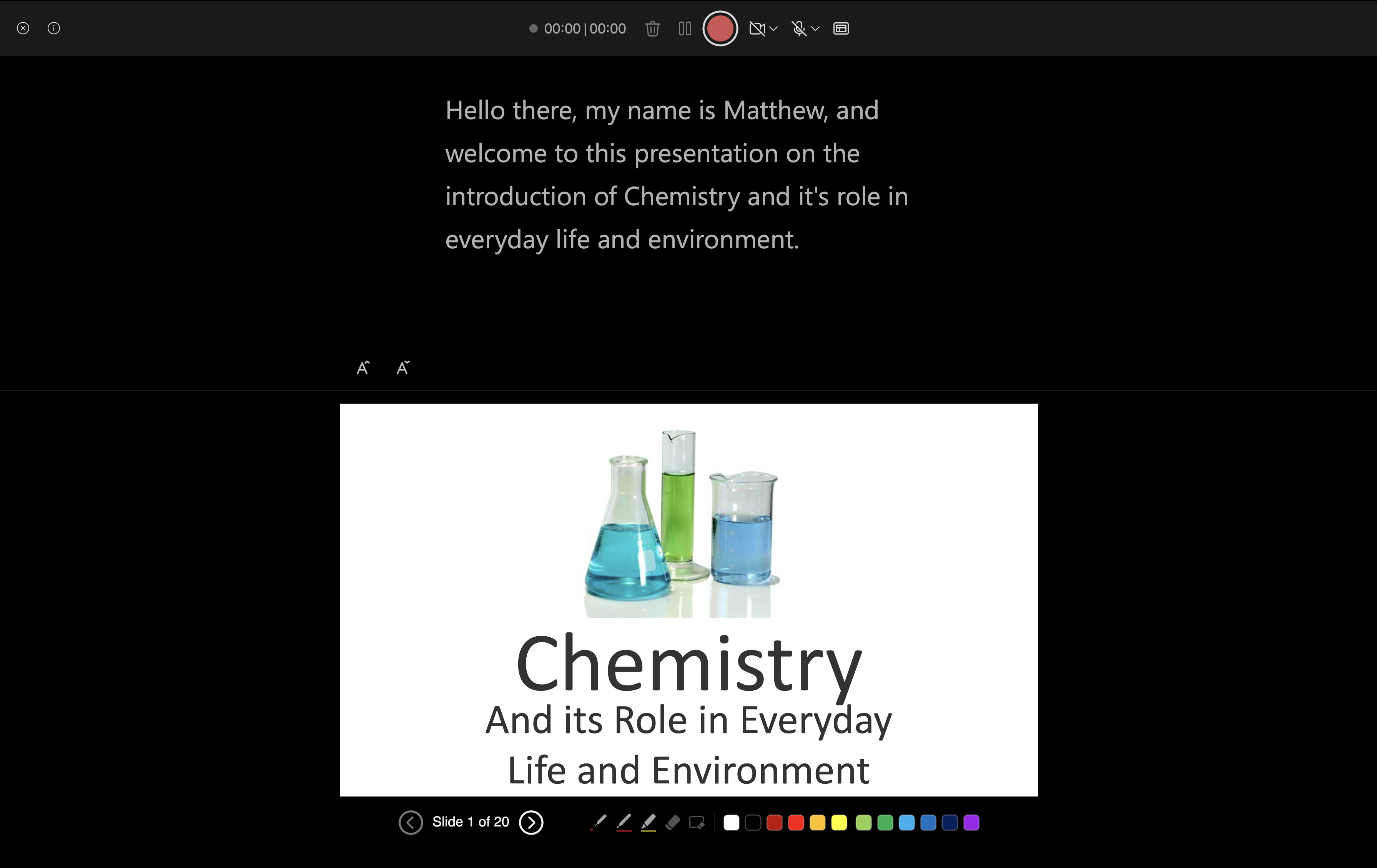
Built into PowerPoint under Slide Show → Record Slide Show. You speak while advancing slides; export with Use Recorded Timings and Narrations for an MP4 that includes your audio. Strengths: free if you already own Office, no upload, full control of delivery. Weaknesses: mic quality, room noise, re-recording friction, and audible mismatches when you patch individual slides months later. See the full walkthrough in How to add narration to a PowerPoint.
SlideNarrator AI narration
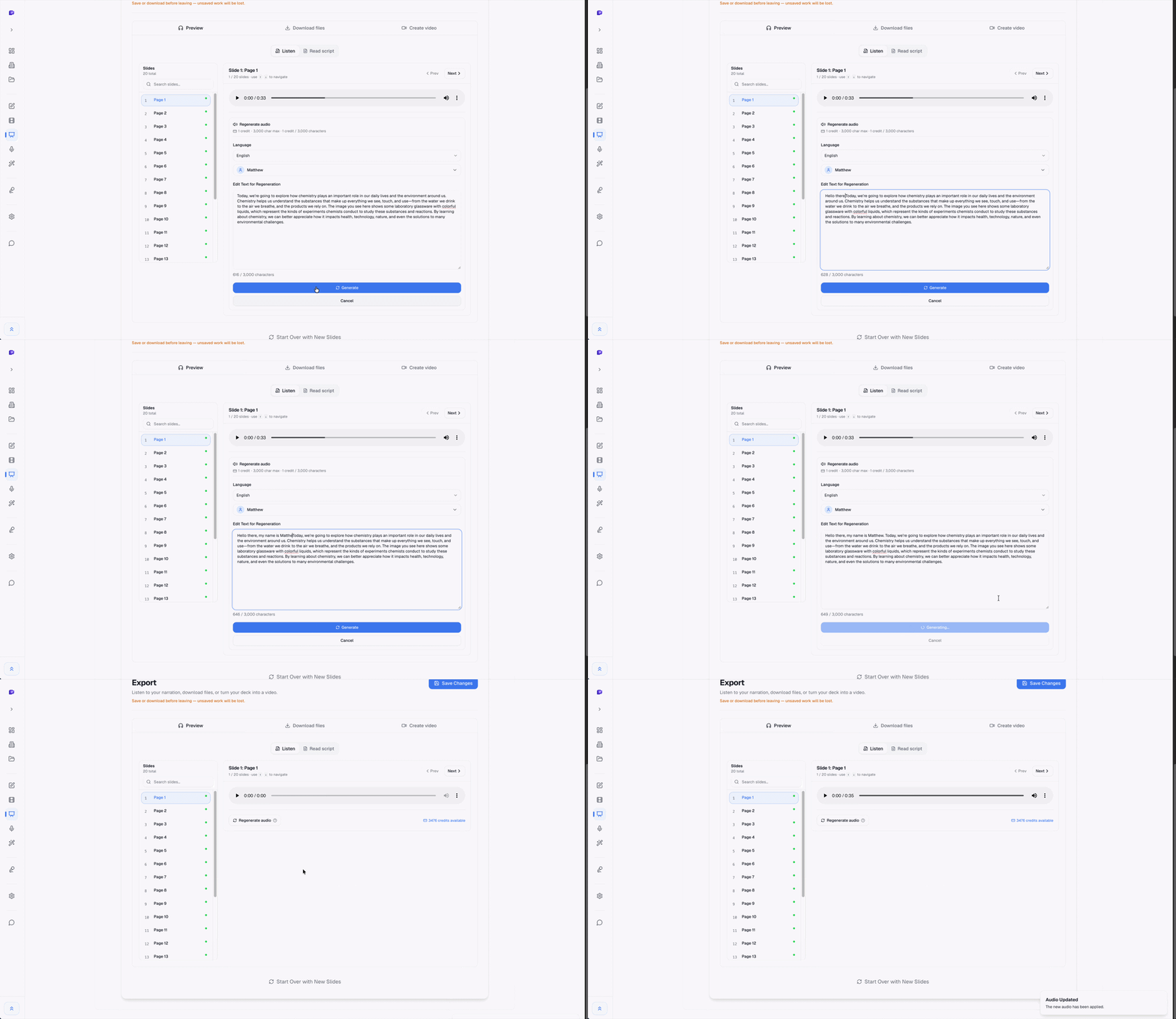
Upload .pptx or PDF, generate/edit per-slide scripts, pick a voice (or clone), export narrated MP4. Strengths: speed, consistent levels, partial updates, PDF support, multilingual voices. Weaknesses: requires internet, script review still needed for acronyms and policy numbers, and a cloned voice is close-but-not-identical to a carefully recorded human take. Full export options are covered in How to convert PowerPoint to MP4 with audio.
The update test (where teams usually decide)
Training and onboarding content changes. On our two-slide update, the AI path regenerated only the changed narration and re-exported in minutes. PowerPoint required re-recording those slides in a different session — levels and energy rarely match the original. If you expect quarterly policy or product updates, that difference compounds.
Feature comparison
| Criterion | PowerPoint Record | SlideNarrator |
|---|---|---|
| Narrated MP4 export | Yes (with recordings) | Yes |
| PDF input | No | Yes |
| Per-slide audio update | Re-record | Regen clip |
| Voice consistency | Depends on session | High |
| Offline | Yes | No |
| Multilingual voices | Your languages | 23+ audio languages |
| Price entry | Office license | Free tier + paid plans |
Frequently Asked Questions
- Can PowerPoint Record replace an AI narration tool?
- For a single presentation you record once, yes. For a library of training or course modules that change, the update and consistency costs usually push teams toward AI narration.
- Does SlideNarrator keep my voice if I already record in PowerPoint?
- You can keep recording yourself in PowerPoint, or clone your voice from a short sample in SlideNarrator and generate new modules without a mic session each time.
- Which is better for LMS uploads?
- Both can output MP4. The AI path tends to win when you need repeatable resolution, captions-ready scripts, and frequent re-exports after content edits.
Related guides
- How to update a narrated PowerPoint video — content matching, manual remap, and 1→1 pairing when the deck changes
- How to convert PowerPoint to MP4 with audio — why built-in export is silent, and the three practical paths
- Best PowerPoint to video tools in 2026 — side-by-side scores for Record, Loom, Synthesia, Canva, and SlideNarrator
- How to add narration to a PowerPoint — step-by-step for each method
Compare both paths on the same deck
Upload a PowerPoint or PDF and export a narrated MP4. Free tier available — then decide if Record Slide Show or AI narration fits your update cycle.
Start with a free deck →Written by
Sunny
Founder, SlideNarrator