PowerPoint can export an MP4 with recorded narration. If you already have narration and slide timings, include them in the export settings. If you only have written slides, you first need to record a voice, add an audio track, or generate narration with an AI tool.
Choose the workflow below for your version of PowerPoint. Windows and Mac export differ, particularly when your deck contains inserted media. The steps link to Microsoft's documentation so you can check your version's capabilities.
Export PowerPoint to MP4 with audio on Windows
- Save your deck. If you need narration, record it with PowerPoint's recording tools first.
- Choose File → Export → Create a Video and select a resolution.
- Select Use Recorded Timings and Narrations to include your recorded delivery and pacing.
- Choose Create Video, save as MPEG-4, and wait for export to finish.
- Play the saved MP4 and check its sound and slide changes.
See Microsoft's Windows export instructions for supported versions and media limitations.
Export PowerPoint to MP4 with narration on Mac
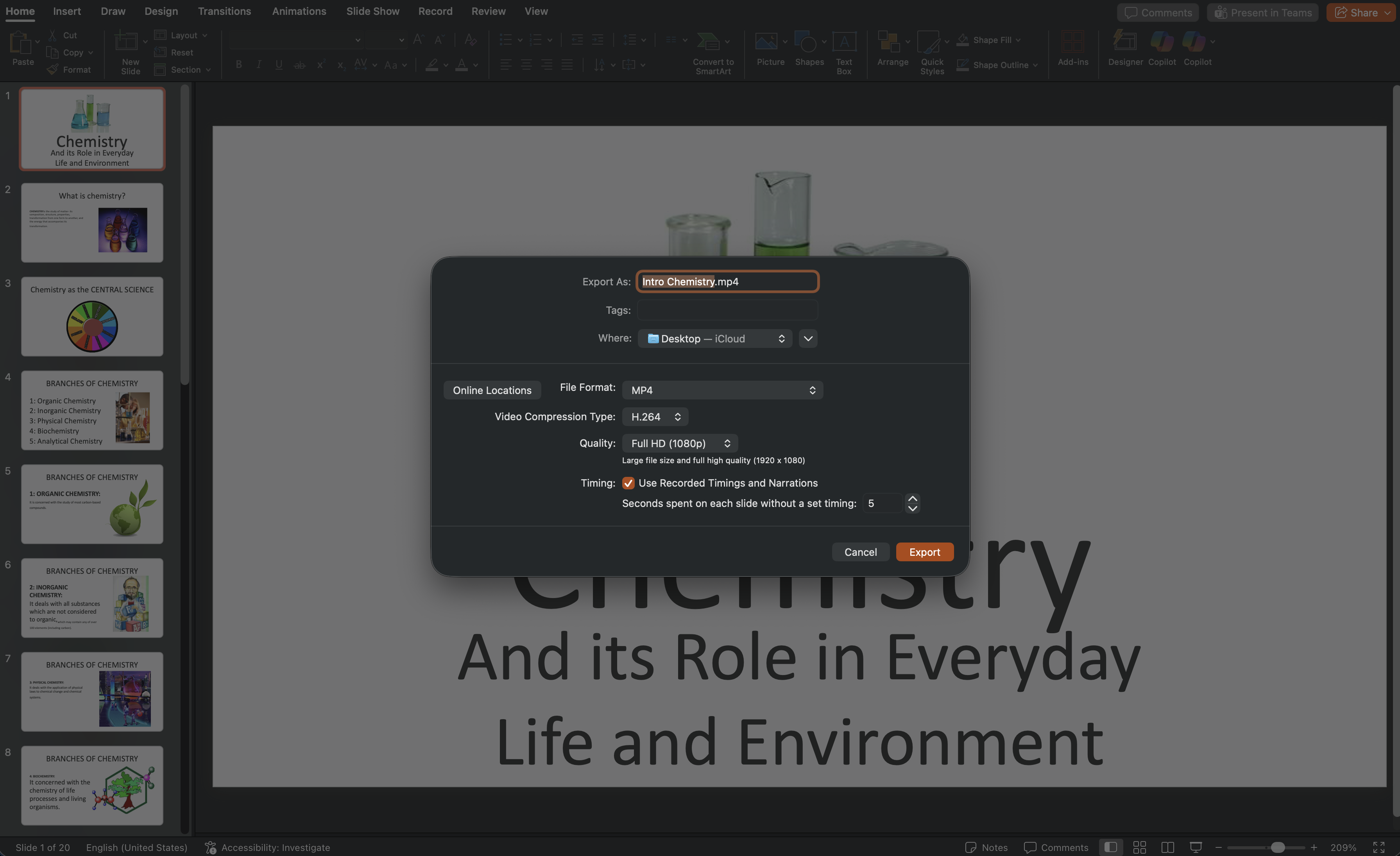
- Record your narration and timings, then choose File → Export.
- Choose MP4 under File Format and select a video quality.
- Enable Use Recorded Timings and Narrations, then export and play the saved file.
Microsoft documents support for recorded narration in Mac video export from version 16.19. It also notes that other embedded media may not play in the exported movie. Check a short export if your deck uses music or inserted media.
See Microsoft's Mac export instructions and limitations.
Why is the exported video silent or out of sync?
First check whether the problem exists in the presentation or only in the saved MP4. Preview an affected slide in Slide Show, then play the exported file with your device and player volume turned up.
| What you notice | What to check |
|---|---|
| There is no narration in Slide Show | Written slide text and speaker notes are not a recorded voice track. Record narration or generate audio before exporting. |
| Recorded narration is missing from the MP4 | Review the option to include recorded timings and narrations. Save, export again, and inspect the new file. |
| Slides advance before the speaker finishes | Preview your recorded timings. Correct the timing on the affected slides, then export with those timings enabled. |
| Inserted music or video disappears | Check the media restrictions for your PowerPoint version, especially on Mac. Try a short export containing that media before processing the whole deck. |
| The MP4 is silent in one player | Check the player's mute setting and output device, then try another player before regenerating the presentation. |
If you want to mix narration, background music, and other sound, another option is to export the slides and assemble the audio in a video editor. Review the timing at every slide transition after editing.
Create AI narration from a PowerPoint or PDF
If you have a deck but no recorded voice track, SlideNarrator can generate a script and narration for each slide. This is also a route for a PDF source. Review the wording and pronunciation before creating the finished video.
- Upload your PPTX or PDF and review the imported slides.
- Generate or edit each slide's script. Check facts, names, and instructions against the source material.
- Select a voice and language. Preview the voice and check the credit requirement before generating narration.
- Listen through the slides, correct any narration, and check the timing.
- Generate the MP4, download it, and play the actual exported file before sharing it.
Check the video before publishing
Pick a resolution that keeps the smallest important text readable on your audience's screen. Check the destination's file-size limits and test playback there. An MP4 is a video file; it does not by itself provide SCORM packaging or learner-completion reporting. Check your LMS requirements if you need those features.
- Listen to the first and last sentence of each slide.
- Check that labels, charts, and narration refer to the same content.
- Verify slide changes after any script or timing edits.
- Keep your source deck and scripts so later corrections are easier.
Frequently asked questions
- Can PowerPoint export a video with sound?
- Yes. Desktop PowerPoint can export recorded narration. Include your recorded timings and narrations in the export settings and check the finished MP4. Support for inserted media differs between Windows and Mac.
- Does PowerPoint automatically read speaker notes in the exported video?
- Writing speaker notes does not create an audio track. Record the narration or use a narration tool to generate audio from the text.
- Why does music disappear when I export on Mac?
- Microsoft's Mac export documentation distinguishes recorded narration from other embedded media, which may not play in the exported movie. Check the linked version guidance and test a short export with your music.
- How do I convert a PDF to MP4 with audio?
- Use a workflow that imports PDF pages and adds narration, such as SlideNarrator. Review the script and audio for each page, then export the narrated MP4.
Related guides
- Listen to AI voice samples — compare voices before generating a deck.
- Add narration to PowerPoint — review recording and AI options.
- Update a narrated PowerPoint video — keep narration aligned when the deck changes.
- AI voice over for PowerPoint — explore the SlideNarrator workflow.
Need narration for a deck you already have?
Upload a PowerPoint or PDF, review the script, choose a voice, and export an MP4. Check your plan and credit requirement before processing the full deck.
Try SlideNarrator free →Written by
Sunny
Founder, SlideNarrator