You can add narration to a PowerPoint three ways: (1) Slide Show → Record Slide Show inside PowerPoint, (2) upload the deck to an AI narration tool that generates scripts and voices per slide, or (3) record externally (Audacity/GarageBand) and import audio manually. Built-in record is fine for one-off internal decks. AI narration wins when you update content often, need PDFs, or want consistent voice levels. Manual recording wins when your personal delivery is the product. Below: how each works, what we timed, and when to pick which.
I wrote this after putting the same 18-slide training deck through PowerPoint Record, Audacity + CapCut, and SlideNarrator — then re-doing two changed slides with each method to compare update time.
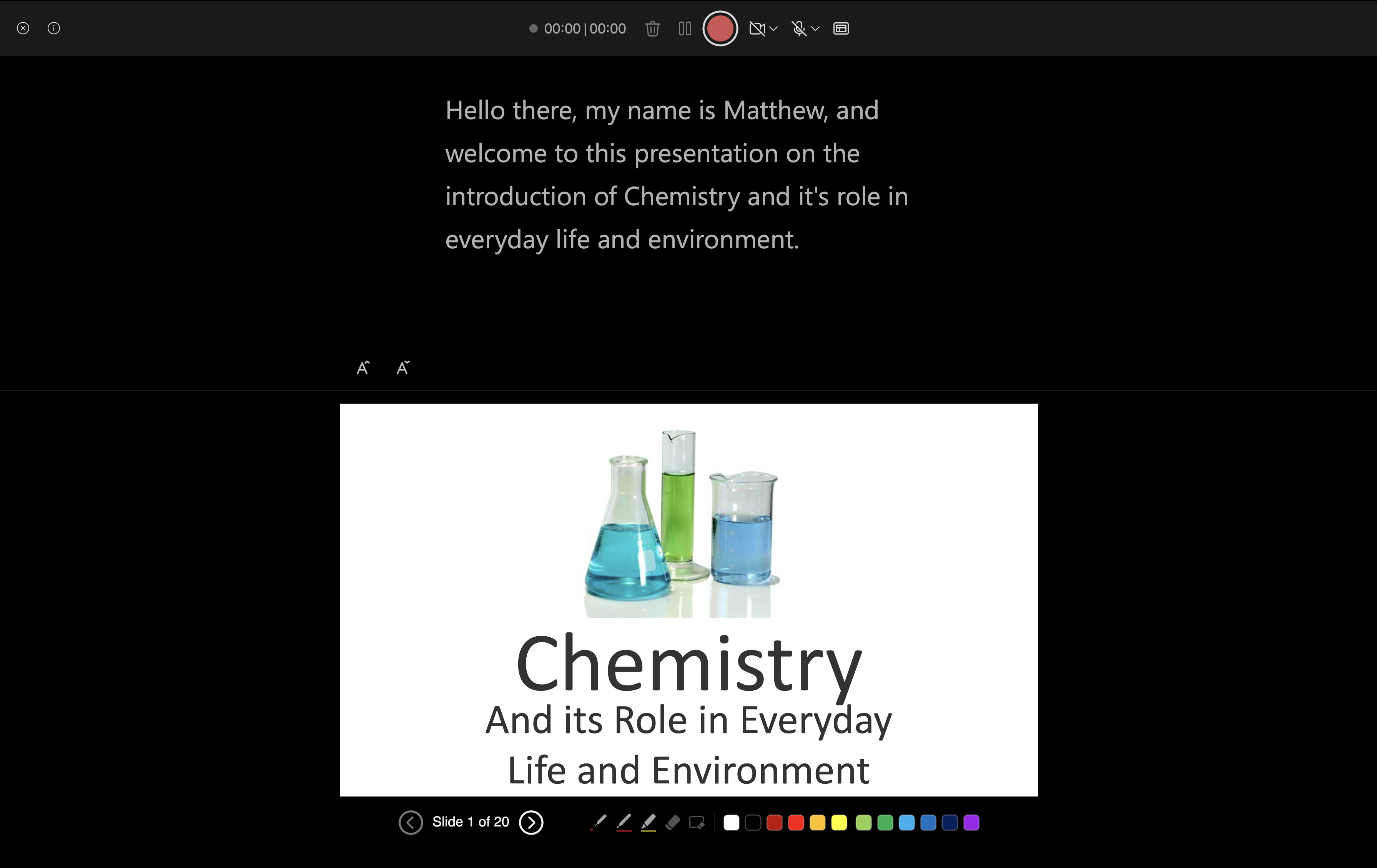
Method 1: PowerPoint's Built-in Record Narration
Found under Slide Show → Record Slide Show, this is PowerPoint's native solution. You advance through your slides while speaking, and PowerPoint saves one audio clip per slide. Simple enough in theory. The friction shows up when you actually try to use it consistently.
Re-recording is painful. Each slide's audio exists independently, which sounds convenient until you re-record slide 6 and the audio level doesn't match slide 5. Different room acoustics, different distance from mic, different energy. Listeners notice even when they can't say why — something feels off about the pacing or tone, and it's almost always the stitched-together recording quality underneath.
Microphone quality is everything. A laptop's built-in mic picks up keyboard noise, fan hum, background conversations. If you're publishing content online — training materials, a course, a client-facing video — the audio quality directly affects whether people trust the content. Muffled narration reads as careless production, regardless of how good the slides are.
Updates break the flow. Change three slides six months later and re-record those slides in a different headspace than the original 27. The tone shift is usually audible — the updated slides sound different in energy, speed, or room quality. Over time these patches accumulate and the presentation starts to feel frankensteined.
When it makes sense: one-off presentations, internal use, low-stakes content where getting it done matters more than getting it polished.
Method 2: Add Narration With AI
AI narration has improved significantly. The gap between a good neural voice and a human recording is now close enough that most listeners don't notice — especially for training, education, and corporate content where natural and clear matters more than distinctive. The voice doesn't need to be memorable; it needs to be easy to listen to for 20 minutes.
A typical AI narration workflow looks like this:
- Upload your
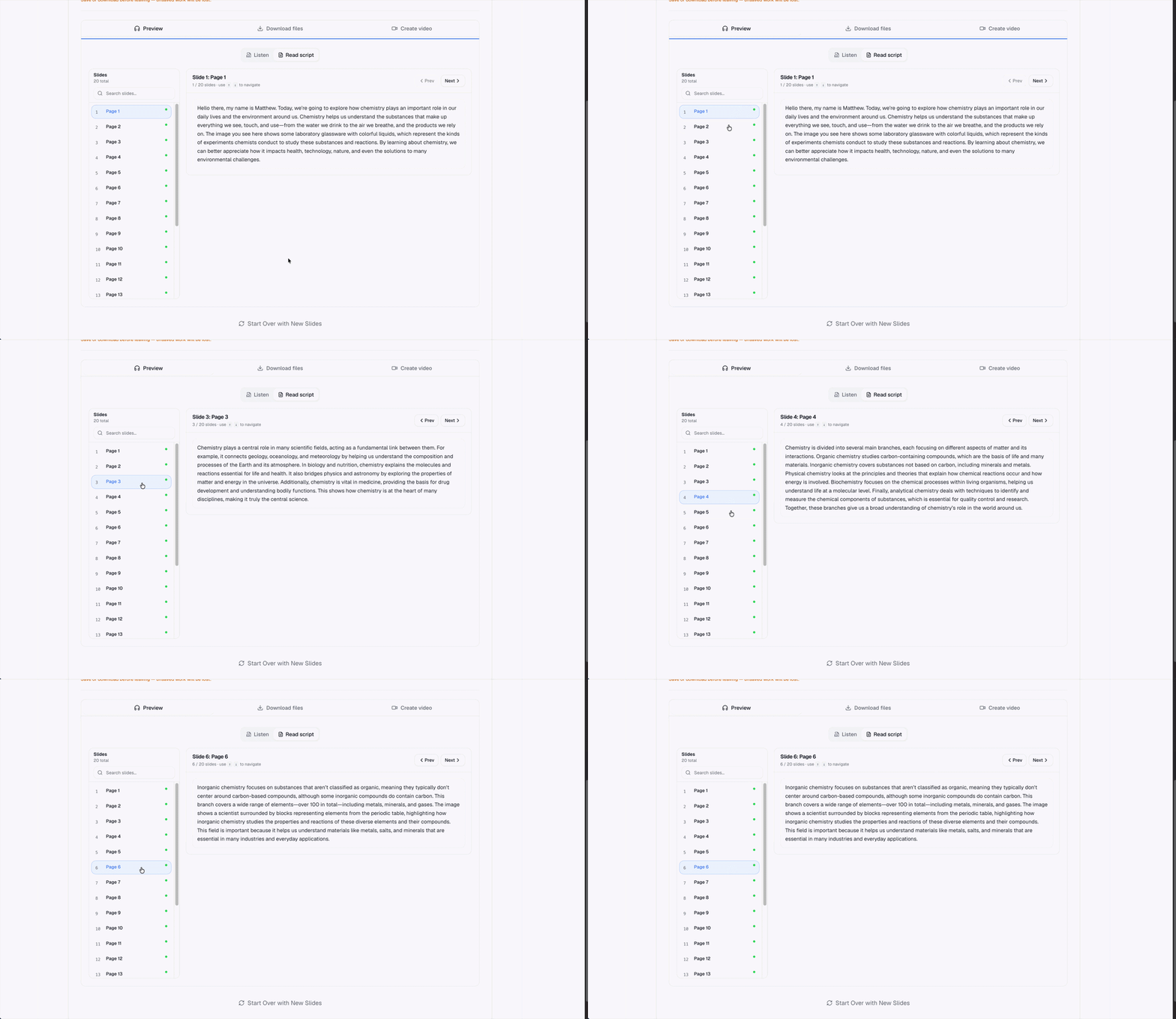
.pptxor PDF (up to 300 slides). - AI generates a narration script for each slide from the content.
- Review scripts — AI reads your slides accurately, but check acronyms, product names, numbers, and anything with context the slide doesn't provide.
- Choose a voice — standard voices are fine; neural and generative voices are noticeably better for content people will watch more than once.
- Generate audio and export as MP4 (slides + narration synced) or download audio files separately.
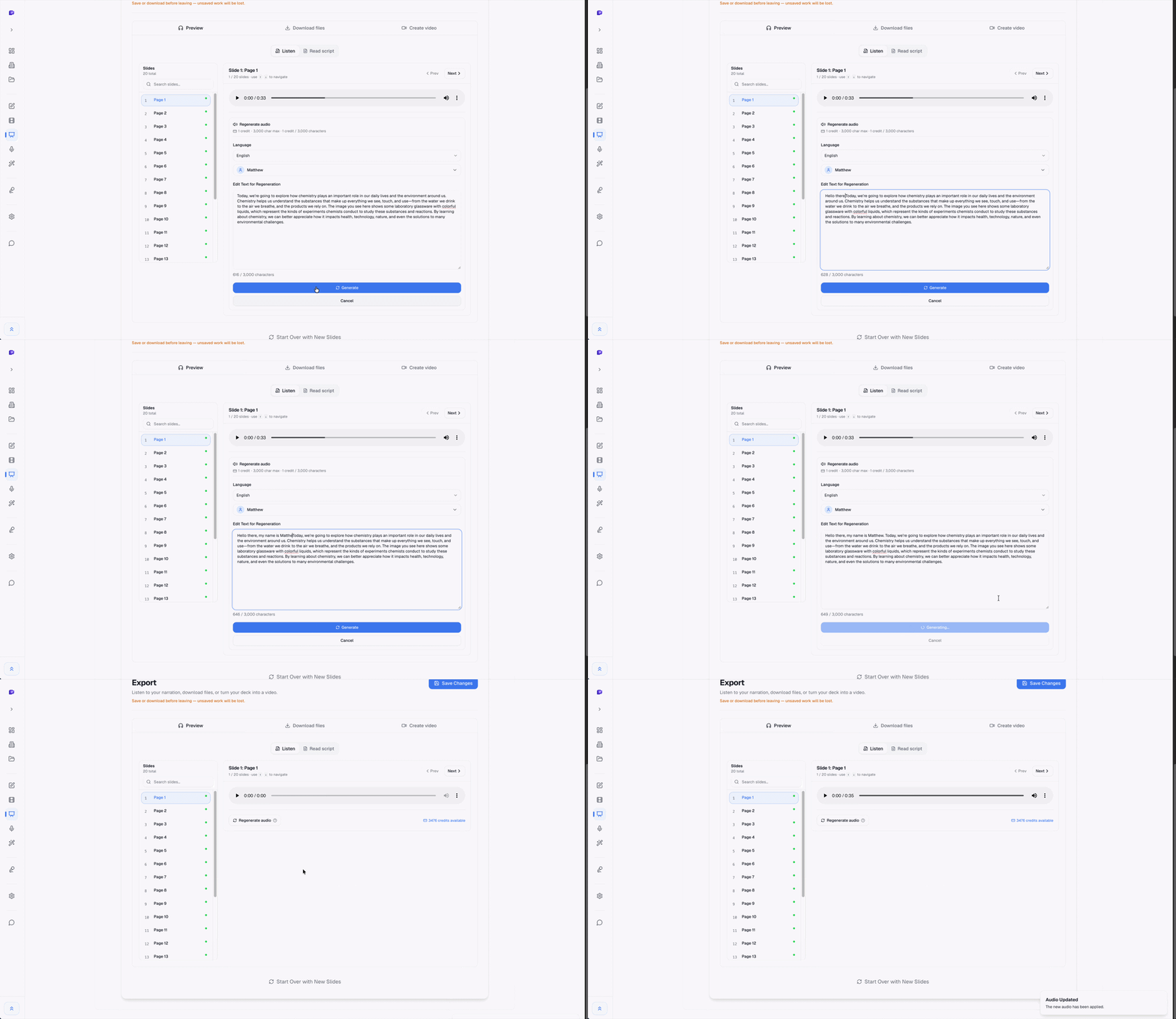
For a 20-slide deck this takes 15–25 minutes end to end. Updates take about 5 minutes: edit the script for the changed slide, regenerate just that audio, re-export. No re-recording the whole deck because one fact changed.
Worth mentioning separately: voice cloning. If your audience knows your voice — students, your team, your clients — you can clone your voice from a 15–30 second sample. Every narration from that point uses your voice, not a generic AI voice. This matters more for courses and ongoing content than one-off presentations, where the relationship between speaker and audience is part of the product.
Method 3: Record Externally, Import Manually
Record in Audacity (free, cross-platform), GarageBand (Mac, free), or any DAW you're comfortable with. Edit out mistakes, normalize levels, then embed audio per-slide via Insert → Audio, or merge everything in a video editor like DaVinci Resolve or CapCut and export as MP4. Most control, most time, requires at least basic editing knowledge to do well.
When it makes sense: high-production narration for courses where your specific voice and delivery are part of the product. If people are paying for your expertise and you're the reason they signed up, the manual route is worth the time.
Which Method Fits Your Situation
| Scenario | Best method |
|---|---|
| Quick internal presentation | Built-in PowerPoint record |
| Training content you update regularly | AI narration |
| Course where your voice is your brand | Voice cloning or manual record |
| PDF that needs narration | AI narration (PowerPoint record doesn’t work on PDFs) |
| No internet access | Built-in PowerPoint record |
One Thing Worth Knowing About AI Scripts
AI-generated scripts are based on your slide content, but your slides probably weren't written to be spoken. Bullet points that read clearly as text often sound abrupt when narrated — the eye can backtrack and reread; ears can't. Short sentences work better than long ones. Numbers and abbreviations need to be expanded ("Q3" becomes "third quarter," "10x" becomes "ten times"). The first time you review AI-generated scripts, budget 10–15 minutes to edit for spoken delivery. Subsequent decks go faster as you start adjusting how you write slides for the format.
Frequently Asked Questions
- Does PowerPoint have a text-to-speech feature?
- PowerPoint has a Speak function in Accessibility settings, but it’s meant for reading selected text aloud — not narrating a full presentation. It uses a basic system voice and isn’t designed for export.
- Can I add narration to a PowerPoint PDF?
- Not with PowerPoint directly. If you have a PDF, use an AI narration tool that accepts both .pptx and PDF uploads.
- How do I add narration to just one slide without re-recording everything?
- With the built-in PowerPoint method you can re-record individual slides. With AI narration, you edit and regenerate individual slides’ scripts and audio independently.
- What file format should I export for sharing online?
- MP4 is universally supported across LMS platforms, social media, and video hosting. Most AI narration tools export MP4 with narration synced to each slide.
Related guides
- How to write narration scripts from PowerPoint bullets — before/after rewrites so AI or recorded voice doesn’t sound like a checklist
- AI narration for PowerPoint — product page: scripts, voice, synced MP4 without a mic
- AI voice over for PowerPoint — voices, languages, and voice cloning for your deck
- How to convert PowerPoint to MP4 with audio — export settings on Windows and Mac, and fixes for missing audio
- SlideNarrator vs PowerPoint Record — when self-recording wins vs AI narration for training and updates
- Best PowerPoint to video tools in 2026 — honest matrix across Record, Loom, Synthesia, and more
Want to test AI narration on your own deck?
SlideNarrator's free tier includes 20 credits, enough to narrate a full deck and compare the workflow yourself.
Get started free →Written by
Sunny
Founder, SlideNarrator